
后浪云百度小程序教程:web-view 网页容器

- web-view 网页容器
- 属性说明
- 使用 web-view 打开限定域名内的网页
- 示例
- 代码示例
- 相关接口介绍
- Web 态说明
- 相关接口 1
- 相关接口 2
- 相关接口 3
- Bug & Tip
- 常见问题
- Q:如何在 web-view 中使用拨打电话的功能或接口?
- Q:在 web-view 中使用了 cookie ,导致存储信息与小程序不能共享的原因是什么?
- Q:小程序使用 web-view ,分享时 path 字段指定的链接能直接是 web-view 对应的 url 而不是小程序的 path 吗?
- 属性说明
web-view 网页容器
解释:web-view 组件是一个可以用来承载网页的容器,会自动铺满整个智能小程序页面。navigationStyle: custom 对 web-view 组件无效
属性说明
| 属性名 | 类型 | 默认值 | 必填 | 说明 | 最低版本 |
|---|---|---|---|---|---|
| src | String | 是 | web-view 指向网页的链接 | - | |
| bindmessage | EventHandler | 否 | 网页向小程序 postMessage 时,会在特定时机(小程序后退、组件销毁、分享)触发并收到消息。e.detail = { data } | 1.12.0 低版本请做兼容性处理 |
使用 web-view 打开限定域名内的网页
访问智能小程序管理中心,进入对应的小程序管理后台,点击“设置 -> 开发设置 -> 业务域名”,即可在业务域名中下载、配置校验文件并配置业务域名。
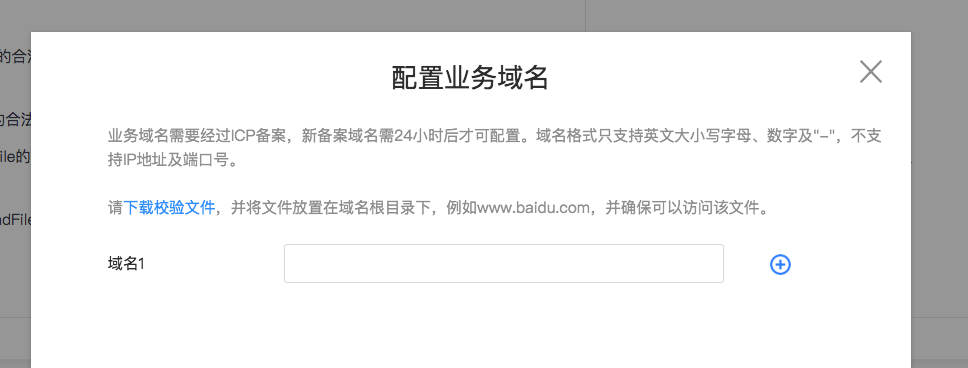
如何在根目录下放置校验文件?
举例:小程序 appid = 123456
配置域名为:https://a.baidu.com 则需要把校验文件放置到 a.baidu.com 域名下,最后的链接地址为:https://a.baidu.com/bd\_mapp\_domaincer\_123456.txt
配置域名为:https://baidu.com 则需要把校验文件放置到 baidu.com 域名下,最后的链接地址为:https://baidu.com/bd\_mapp\_domaincer\_123456.txt
配置域名为:https://xx.bb.baidu.com 则需要把校验文件放置到 xx.bb.baidu.com 域名下,最后的链接地址为:https://xx.bb.baidu.com/bd\_mapp\_domaincer\_123456.txt
正确配置的情况下,这个txt文件应该是能够通过这些地址(如:https://a.baidu.com/bd\_mapp\_domaincer\_123456.txt)访问到的。配置后,页面打开的效果: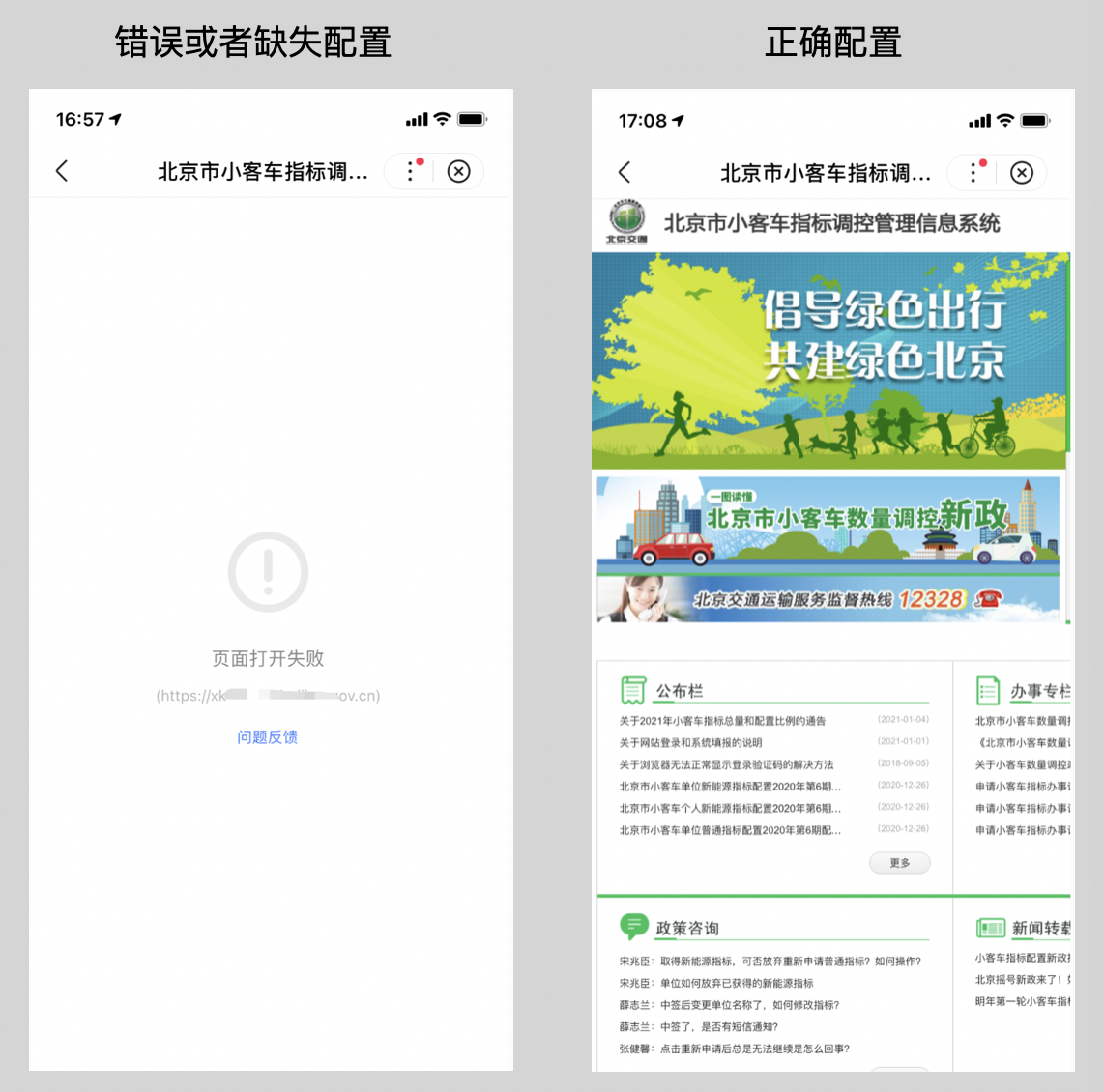
注意事项:
- 所有在 H5 页面(包括通过该页打开的其他 H5 页)出现的请求域名都需要进行上方的配置,含静态文件(js、css、图片等)
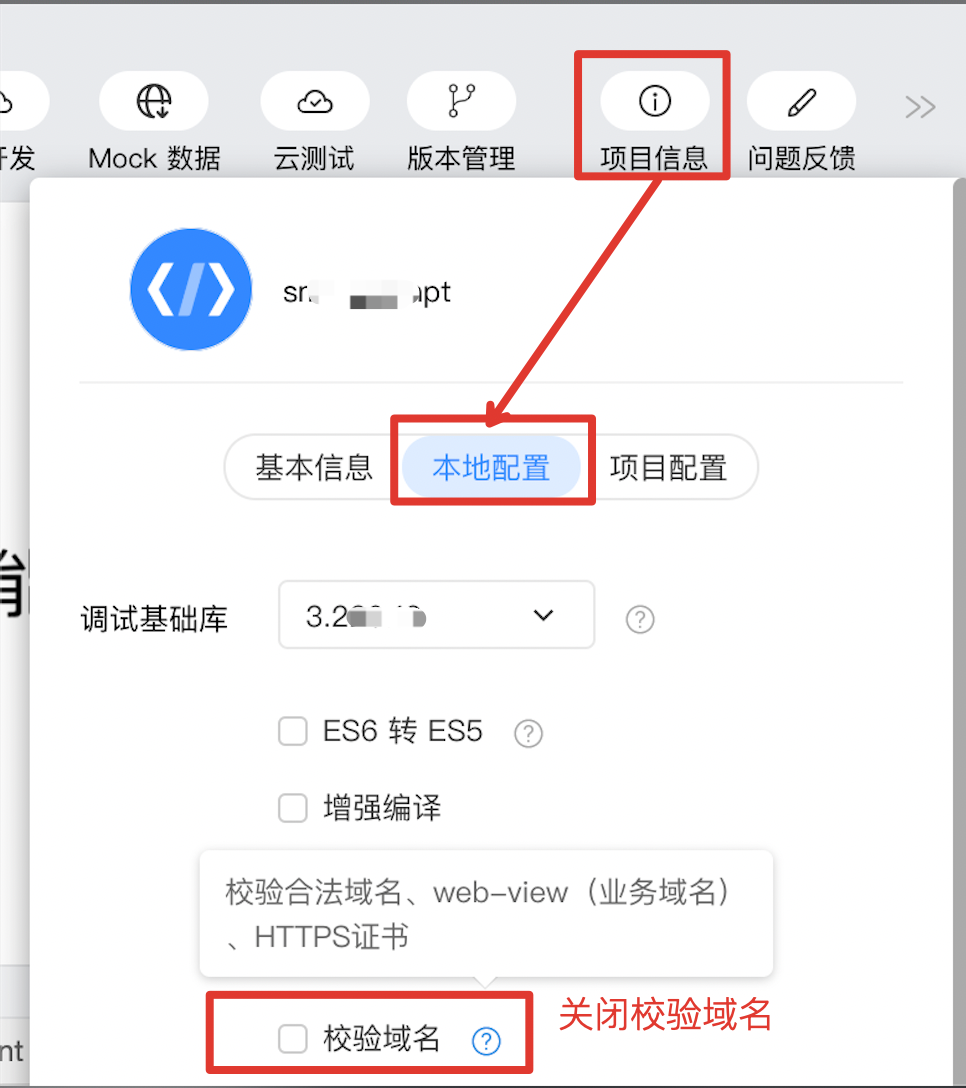
- 当在
开发者工具-项目信息-本地配置里不勾选校验域名时,可以在开发环境中临时关闭对域名的校验,但这个设置并不对线上小程序生效,即如果小程序发布上线前,没有在智能小程序管理中心进行上方的配置,那线上访问这些页面时将依然出现异常,提示出错
示例
在开发者工具中打开
在开发者工具中打开
在 WEB IDE 中打开
扫码体验
代码示例

请使用百度APP扫码
代码示例
跳转页面
- SWAN
- JS
<view class="wrap"><button type="primary" bindtap="toWebView">点击进入 H5 页面</button></view>
Page({// onLoad 时接收 H5 页传过来的参数,可写在承载 web-view 的小程序页,也可以写在非 web-view 页,此处为非 web-view 页示例onLoad(options) {if (options.key) {swan.showToast({title: `接受到来自H5页的参数为:${options.key}`,icon: 'none'});console.log('接受到来自H5页的参数为', options); // {key: 'fromWebview'}}},toWebView() {// 进入 H5 页swan.navigateTo({url: '/index/index'})}});
web-view 页面
- SWAN
- JS
<web-view src="{{src}}" bindmessage="postMessage"></web-view>
Page({data: {src: `https://smartprogram.baidu.com/docs/html/web-view/web-view.html?${encodeURIComponent('中文参数=value')}`},// onLoad 时接收H5页传过来的参数,刷新本 H5 页的时候,也可以接收onLoad(options) {// 这里Key为示例,可更换为其他if (options.key) {swan.showToast({title: `接受到来自H5页的参数为:${options.key}`,icon: 'none'});// {key: 'fromWebview'}console.log('接受到来自H5页的参数为', options);}// 分享出去的收口机制,相当于刷新if (options.path) {swan.showToast({title: `小程序分享回流后打开的H5页为:${options.path}`,icon: 'none'});this.setData('src', options.path);}},// web-view 通过 swan.webView.postMessage 向小程序发送消息,小程序通过 bindmessage 事件来监听网页向小程序发送的消息,接收时机:小程序后退、组件销毁、分享时postMessage(options) {swan.showToast({title: '接收到了H5发送的message,详细信息请到控制台查看',icon: 'none'})console.log('H5页传过来的参数为:', options);// options 为// {// currentTarget: {// id: '_5302',// offsetLeft: 0,// offsetTop: 0,// dataset: {}// },// detail: {// data:["foo"]// },// 'target': {// id: '_5302',// offsetLeft: 0,// offsetTop: 0,// dataset: {}// },// timeStamp: 8,// type: "message",// }},onShareAppMessage(options) {// 获取当前<web-view>的URL, 真机可以,工具暂不能返回此字段console.log('H5页的url', options.webViewUrl);return {title: '智能小程序官方示例',content: '世界很复杂,百度更懂你——小程序简介或详细描述',imageUrl: 'https://b.bdstatic.com/miniapp/images/bgt_icon.png',// 此处写小程序页面pathpath: `/index/index?path=${options.webViewUrl}`,success(res) {// 分享成功},fail(err) {// 分享失败}};}});
H5 页面
- SWAN
<!DOCTYPE html><html><head><meta charset="UTF-8" name="viewport" content="width=device-width, initial-scale=1.0, maximum-scale=1.0, user-scalable=0"><title>web-view</title><script type="text/javascript" src="https://b.bdstatic.com/searchbox/icms/searchbox/js/swan-2.0.22.js"></script></head><body><div class="node"><h2>相关接口1</h2><h3>onLoad接收参数</h3><button type="button" id="navToSmart">点我跳转小程序其他页</button><button type="button" id="refresh">点我刷新</button><button type="button" id="isSmartApp">是否运行在小程序中</button><h3>小程序接收web-view传过来的参数</h3><button type="button" id="postMessage">点击向小程序发送消息</button><button type="button" id="back">小程序后退</button><button type="button">请点击右上方胶囊分享</button><h2>相关接口2</h2><button type="button" id="makePhoneCall">点击拨打电话</button><button type="button" id="setClipboardData">设置剪贴板</button><button type="button" id="getNetworkType">获取网络类型</button><button type="button" id="openShare">分享</button><button type="button" id="navigateToSmartProgram">打开小程序</button><button type="button" id="openLocation">打开地图查看当前位置</button><button type="button" id="getLocation">获取当前地理位置</button><button type="button" id="chooseImage">拍照或上传</button><button type="button" id="previewImage">预览图片</button><button type="button" id="login">用户登陆</button><h2>相关接口3</h2><button type="button">请点击右上方胶囊分享</button><h2>功能1:H5页面之间跳转有返回按钮</h2><button type="button" id="toH5">点击跳转到另一个 H5 页面</button></div></body><script type="text/javascript">/* globals swan */// 页面加载时判断是否在小程序环境中const isSmartApp = function () {// 写法一swan.webView.getEnv(function (res) {console.log(res.smartprogram);alert(`当前页面是否运行在小程序中:${res.smartprogram}`); // true});// 写法二// const isWebView = /swan\//.test(window.navigator.userAgent) || /^webswan-/.test(window.name);// alert(`当前页面是否运行在小程序中:${isWebView}`); // true};// 跳转回小程序页面const navToSmart = function () {// swan.webView.switchTab// swan.webView.reLaunch// swan.webView.navigateToswan.webView.redirectTo({url: '/component/to-web-view/to-web-view?key=fromWebview',success() {console.log('to-web-view success');},fail() {console.log('fail');}});swan.webView.postMessage({data: 'foo'});};// H5页面重新刷新带参数const refresh = function () {console.log('refresh');swan.webView.redirectTo({url: '/component/webview/webview?key=refresh',success() {console.log('to-web-view');},fail() {console.log('fail');}});};// H5页面向小程序发送消息const postMessageHandler = function () {swan.webView.postMessage({data: {key: 'message'}});};// H5页面返回上级小程序页面const backHandler = function () {swan.webView.navigateBack();};document.getElementById('navToSmart').onclick = navToSmart;document.getElementById('isSmartApp').onclick = isSmartApp;document.getElementById('refresh').onclick = refresh;document.getElementById('postMessage').onclick = postMessageHandler;document.getElementById('back').onclick = backHandler;// 调用拨打电话APIconst makePhoneCallHandler = function () {swan.makePhoneCall({phoneNumber: '(0313)xxxx xxxx',success: res => {console.log('res', res);},fail: err => {alert('拨打失败,请检查是否输入了正确的电话号码');}});};// 调用剪贴板APIconst setClipboardDataHandler = function () {swan.setClipboardData({data: 'originData',success: res => {alert('设置成功,剪贴板内容为originData');},fail: err => {alert('设置失败');}});};// 调用网络类型APIconst getNetworkTypeHandler = function () {swan.getNetworkType({success: res => {alert(`当前网络状态为${res.networkType}`);console.log('getNetworkTypeHandler', res.networkType);},fail: err => {alert('获取网络类型失败');}});};// 调用分享APIconst openShareHandler = function () {swan.openShare({title: '智能小程序示例',content: '世界很复杂,百度更懂你',path: 'swan-api/open-share/open-share?key=value',imageUrl: 'https://smartprogram.baidu.com/docs/img/logo_new.png',success: res => {alert('分享成功');console.log('openShare success', res);},fail: err => {alert('分享失败');console.log('openShare fail', err);}});};// 调用打开另一个小程序APIconst navigateToSmartProgramHandler = function () {swan.navigateToSmartProgram({// 打开目标小程序的AppKey,开发版AppKey可在开发者工具中预览获取appKey: 'sc9Tq1iKawTnj5GhG6i77vzeIt4Crt5u',success: res => {console.log('navigateToSmartProgram success', res);},fail: err => {alert('打开失败');console.log('navigateToSmartProgram fail', err);}});};// 调用打开地图APIconst openLocationHandler = function () {swan.openLocation({latitude: 40.04,longitude: 116.27,scale: 18,name: '百度科技园',address: '北京市海淀区西北旺东路10号院',success: res => {alert('打开成功');console.log('openLocation success', res);},fail: err => {alert('打开失败');console.log('openLocation fail', err);}});};// 调用获取地图位置APIconst getLocationHandler = function () {swan.getLocation({type: 'gcj02',altitude: true,success: res => {alert('打开成功,详细信息请到控制台查看');console.log('getLocation success', res);},fail: err => {alert('打开失败');}});};// 调用选择图片APIconst chooseImageHandler = function () {swan.chooseImage({count: 9,sizeType: ['original'],sourceType: ['camera'],success: res => {console.log('res.tempFilePaths', res.tempFilePaths);},fail: err => {alert('接口调用失败');console.log('chooseImage fail', err);}});};// 调用预览图片APIconst previewImageHandler = function () {swan.previewImage({current: 'https://b.bdstatic.com/miniapp/image/swan-preview-image-2-zip.png', // current需与urls中链接一致urls: ['https://b.bdstatic.com/miniapp/image/swan-preview-image-2-zip.png'],success: res => {console.log('previewImage success');},fail: err => {alert('打开失败');console.log('previewImage fail', err);}});};// 调用登录APIconst loginHandler = function () {swan.login({success: res => {alert('已登录');console.log('login success', res);},fail: err => {alert('登录失败');console.log('login fail', err);}});};document.getElementById('makePhoneCall').onclick = makePhoneCallHandler;document.getElementById('setClipboardData').onclick = setClipboardDataHandler;document.getElementById('getNetworkType').onclick = getNetworkTypeHandler;document.getElementById('openShare').onclick = openShareHandler;document.getElementById('navigateToSmartProgram').onclick = navigateToSmartProgramHandler;document.getElementById('openLocation').onclick = openLocationHandler;document.getElementById('getLocation').onclick = getLocationHandler;document.getElementById('chooseImage').onclick = chooseImageHandler;document.getElementById('previewImage').onclick = previewImageHandler;document.getElementById('login').onclick = loginHandler;// 将跳转提升至小程序层面const toH5Handler = function () {swan.webView.navigateTo({// 带不同的query展示不同页面url: '/component/webview/webview?weburl=2'});};document.getElementById('toH5').onclick = toH5Handler;</script></html>
相关接口介绍
Web 态说明
JSSDK 2.0.21 以上版本支持 Web 态环境。
相关接口 1
web-view 网页中可使用 JSSDK 提供的接口返回智能小程序页面。 支持的接口有:
旧版本 swan.xxxx,已更新为 swan.webView.xxxx。
| 接口名 | 说明 |
|---|---|
| swan.webView.navigateTo | 参数与智能小程序接口一致 |
| swan.webView.navigateBack | 参数与智能小程序接口一致 |
| swan.webView.switchTab | 参数与智能小程序接口一致 |
| swan.webView.reLaunch | 参数与智能小程序接口一致 |
| swan.webView.redirectTo | 参数与智能小程序接口一致 |
| swan.webView.getEnv | 获取当前环境 |
| swan.webView.postMessage | 向小程序发送消息 |
代码示例
- SWAN
- JS
<!-- html --><script type="text/javascript" src="https://b.bdstatic.com/searchbox/icms/searchbox/js/swan-2.0.22.js"></script>
// javascriptswan.webView.navigateTo({url: '/pages/detail/index'});swan.webView.postMessage({data: 'foo'});swan.webView.postMessage({data: {foo: 'bar'} });// 如何判断 H5 页面是否在小程序 web-view 打开:// 方法1:swan.webView.getEnv(function(res) {console.log(res.smartprogram);}); // true// isWebView 若为 true,则是在小程序的 web-view 中打开// 方法2:const isWebView = /swan\//.test(window.navigator.userAgent) || /^webswan-/.test(window.name);
相关接口 2
web-view 网页中支持的接口有:
| 接口模块 | 接口说明 | 具体接口 | 备注 |
|---|---|---|---|
| 设备 | 拨打电话 | swan.makePhoneCall | |
| 设备 | 设置剪贴板 | swan.setClipboardData | |
| 设备 | 获取网络类型 | swan.getNetworkType | |
| 位置 | 使用内置地图查看位置 | swan.openLocation | |
| 位置 | 获取地理位置 | swan.getLocation | |
| 媒体 | 拍照或上传 | swan.chooseImage | |
| 媒体 | 预览图片 | swan.previewImage | |
| 用户接口 | 分享 | swan.openShare | 需传入当前要分享的小程序的 appKey |
| 用户接口 | 打开小程序 | swan.navigateToSmartProgram | 2.0.18 版本开始,支持使用 envVersion 打开不同版本的小程序 |
| 开放接口 | 登录 | swan.login |
相关接口 3
用户分享时可获取当前 web-view 的 URL,即在 onShareAppMessage 回调中返回 webViewUrl 参数,参见上方代码示例。
Bug & Tip
- Tip:网页内 iframe 的域名也需要配置到域名白名单。
- Tip:每个页面只能有一个
web-view,web-view会自动铺满整个页面,并覆盖其他组件。 - Tip:网页与智能小程序之间不支持除 JSSDK 提供的接口之外的通信,如果使用了 JSSDK 提供的接口,需要引入
swanjs,参见上方相关接口 1 - 代码示例 。 - Tip:避免给
web-view组件设置的网页链接中带有中文字符,在 iOS 中会有打开白屏的问题,建议做一下 encodeURIComponent ,参见上方代码示例。
常见问题
Q:如何在 web-view 中使用拨打电话的功能或接口?
A:如果想在 web-view 使用 JSSDK 提供的接口能力,需要引入 swanjs 包,请参考代码示例 - H5 页面。
“2.0.21.js”版本为举例,开发时请参考相关接口 1 - 代码示例中的最新版本号进行填写。
生成的 H5 站点地址放入小程序 web-view 的 src 即可。
Q:在 web-view 中使用了 cookie ,导致存储信息与小程序不能共享的原因是什么?
A:web-view 网页与小程序之间不支持除 JSSDK 提供的接口之外的通信:
- 小程序中如需设置 cookie 建议使用 Storage 。
- 如需传递小程序参数到 web-view 组件的 H5 页面中, 可加在 web-view 的 src 后。
Q:小程序使用 web-view ,分享时 path 字段指定的链接能直接是 web-view 对应的 url 而不是小程序的 path 吗?
A:不能,使用 onShareAppMessage 或者 swan.openShare 进行分享时,path只能设置为小程序页面的 path ,不能设置为 H5 页面的 url ,若想回到对应的 H5 页,参见上方代码示例 - 跳转页面。